Help With my account
Jump to a Question
- How do I know if I'm logged in to my account?
- How do I view my Store Credits and Bonus Bucks?
- How do I add or remove a card on file?
- How can I change my Email address?
- How can I change my password?
- How can I manage my address (Shipping/Billing)?
- How can I unsubscribe from emails?
- How can I manage my Wishlist?
- How do I sign up for the Military/LE discount?
You'll know you're successfully logged in when you see "Welcome, [Your Name]" at the top right corner of the website, next to your shopping cart icon.

- Log in to your customer account.
- Navigate to "Store Credits and Bonus Bucks."
- Click "See All Credits."

You'll then see a list that includes the following details:
- Gift Certificate/Bonus Bucks Code – This is the code you'll enter at checkout (Step 3) in the "Apply Gift Certificate/Bonus Bucks Code" field.
- Original Amount – The total amount that was originally issued.
- Remaining Amount – The current balance available for use.
- Expiration Date – The date the code will expire. If no date is listed, the code does not expire.

Note: The code provided above is not a valid code.
- Log in to your customer account.
- Go to your Account Overview or select the Settings tab.
- If you're in the Account Overview section, look for the Payment Information section.
- If you're in Settings, select the "Credit Cards" option.

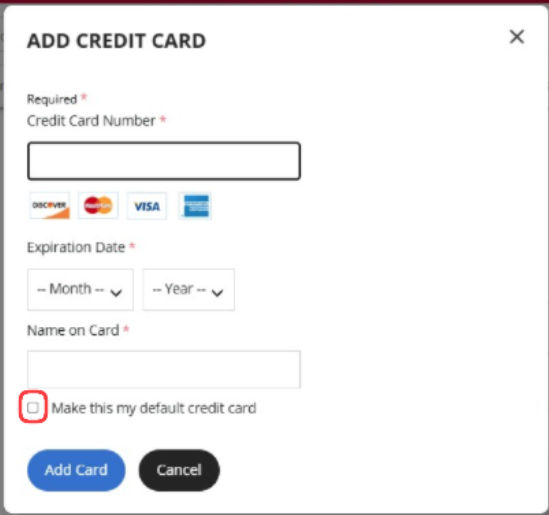
To add a card, click the "Add Credit Card" button and enter your card details.
If you're marking this as your default card, make sure to select that.
- Log in to your customer account.
- Go to the Settings tab.
- Select "Profile Information"
- Locate the "Change Address" button and select it.
- Enter your new email, confirm the new email and then the current password and hit the "Send Verification email" button

If you encounter any difficulties or require further assistance:
- Call us at 713-344-9600 and a representative will be happy to assist you.
- Alternatively, you may email us at info@primaryarms.com with "Update My Email" in the subject line.
- We are available Monday through Friday from 8:00 AM to 7:00 PM Central Standard Time
- Log in to your customer account.
- Go to the Settings tab.
- Select "Update Your Password."
- Enter your current password and then the new password you'd like to use

If you encounter any difficulties or require further assistance:
- Call us at 713-344-9600 and a representative will be happy to assist you.
- Alternatively, you may email us at info@primaryarms.com with "Change My Password" in the subject line.
- We are available Monday through Friday from 8:00 AM to 7:00 PM Central Standard Time
To add, edit, or remove an address, follow these steps:
- Log in to your customer account.
- Navigate to Settings > Address Book.
- To add a new address, click "Add New Address."
- To remove an existing address, click the "Remove" button next to it.
- To edit an address, click the "Edit" button next to the address you'd like to update.

There are two ways to unsubscribe on your own:
- Log in to your customer account.
- Go to Settings > Email Preferences.
- Enter your email address and click "Unsubscribe from our emails."
- You'll be taken to a new page—select your reason for unsubscribing, then click Submit


If you have received a promotional email, you can unsubscribe by scrolling to the bottom and selecting the unsubscribe option.

If you encounter any difficulties or require further assistance:
- Call us at 713-344-9600 and a representative will be happy to assist you.
- Alternatively, you may email us at info@primaryarms.com with "Unsubscribe" in the subject line.
- We are available Monday through Friday from 8:00 AM to 7:00 PM Central Standard Time
- Log in to your customer account.
- Go to the Wishlist you want to edit.
- To remove an item:
- Find the item you want to delete.
- Click the blue "Add Items to Cart" button.
- Then, click the dropdown arrow and select "Remove Items."

Once successfully removed, the message will appear:

- Log in to your Primary Arms account.
- Go to the Overview section of your profile.
- Click the "Verify with ID.me" button. This will redirect you to ID.ME
- Follow the prompts to complete verification through ID.me.
- Important: Be sure to allow access to Primary Arms so we can complete the verification process.
- Once verified, you'll be redirected back to your profile page.
- Log out, then log back in to activate the discount on your account.

After logging in with your registered email, you'll see the discounted pricing above the crossed-out retail price on eligible product pages.
For a full list of brands eligible for the Military and LE discount, please visit our Military and LE Pricing page.